Scheduling posts is a good practice to ensure your LinkedIn account has a consistent update schedule, which can help improve the algorithm’s distribution of contents. However, many account owners only discover an error within the post after already scheduling it. So, how to edit scheduled posts on LinkedIn?In this article, MKT Software will walk you through every step needed to edit a scheduled post on LinkedIn.
The answer is Yes, you can edit scheduled posts on LinkedIn, but only to a limited extent.LinkedIn allows users to modify certain elements of a scheduled post before it is published. However, not all components are editable. If a post requires major changes, such as replacing media or links, you may need to delete and create a new post instead.Understanding these limitations beforehand helps avoid unexpected issues, especially when managing content calendars or posting for company pages.How to edit scheduled posts on LinkedIn – Can you edit scheduled posts
How to view scheduled posts on LinkedIn
The first step to edit a scheduled post is knowing where you can find and manage them. LinkedIn stores all scheduled posts in a dedicated section, accessible before the publishing dates.
Where to find scheduled posts on LinkedIn mobile
To find scheduled posts on LinkedIn mobile, you can follow these steps:
Step 1: Open the LinkedIn app.
Step 2: Tap on Create a new post.
Step 3: Tap on the clock icon on the top right corner.
Step 4: Choose View All.
By following these steps, you will be able to access your whole list of scheduled posts, and edit them if necessary.How to edit scheduled posts on LinkedIn – Where to find scheduled posts
Where to find scheduled posts on LinkedIn website
On desktop, gaining access to scheduled posts varies depending on whether you’re using a personal or company account.If your account is a personal one, follow these steps:
Step 1: Click on Create a post.
Step 2: Select the clock icon.
Step 3: Select View scheduled posts.
Step 4: Browse the list of scheduled posts.
For company pages:
Step 1: Switch to the Page view.
Step 2: Use the Page posting interface.
Step 3: Access scheduled content from the same scheduling menu.
How to edit scheduled posts on LinkedIn?
Editing a scheduled LinkedIn post involves accessing your scheduled content list and opening the post before its publish time. The process is similar across devices, however, the navigation and interface will differ slightly between the mobile and website version.Before editing, you need to ensure the following considerations:
The post has not been published yet.
You are the original author or page admin.
The post was scheduled using LinkedIn’s native scheduling feature instead of any third-party software.
How to edit scheduled posts on LinkedIn – Full guide
How to edit scheduled posts on LinkedIn mobile
In order to edit scheduled posts using LinkedIn mobile, follow these steps:
Step 1: Open the LinkedIn app.
Step 2: Tap on Create a new post.
Step 3: Tap on the clock icon on the top right corner.
Step 4: Choose View All.
Step 5: Tap the scheduled post you want to edit.
Step 6: Choose Edit post and make allowed changes.
Step 7: Save the new changes.
How to edit scheduled posts on LinkedIn – Interface
How to edit scheduled posts on LinkedIn website
On the LinkedIn website, scheduled posts are easier to manage due to the expanded interface. Simply follow these steps:
Step 1: Log in to LinkedIn.com.
Step 2: Click Start a post.
Step 3: Select View scheduled posts.
Step 4: Locate the post you want to edit.
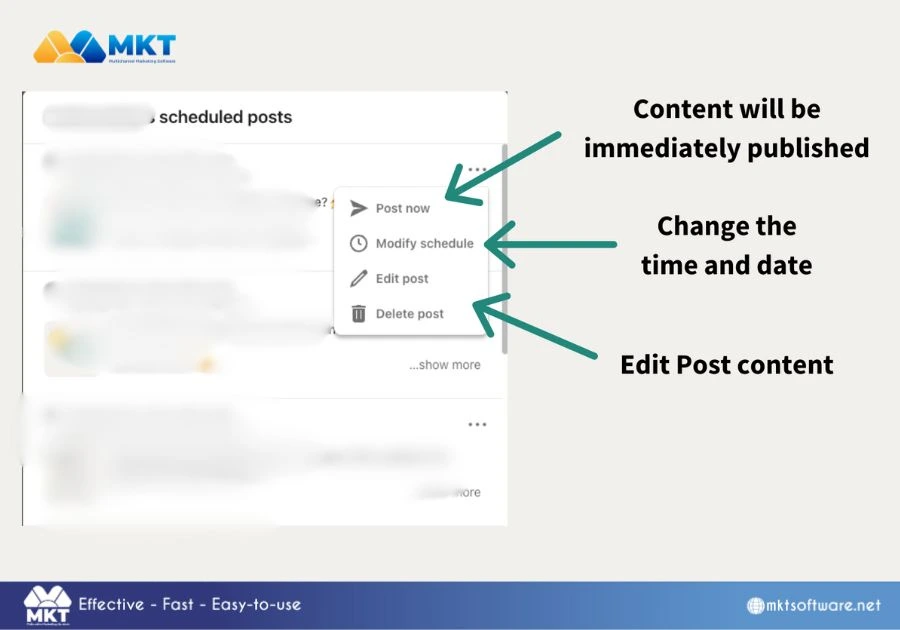
Step 5: Click the three-dot menu.
Step 6: Select Edit post content and update the permitted fields.
Step 7: Save changes.
Limitations when edit LinkedIn’s scheduled posts
While LinkedIn allows editing, the functionality is limited. Understanding these constraints may help prevent publishing errors.Key limitations when edit LinkedIn’s schedule posts include:
Media cannot be replaced: Images, videos, and documents cannot be changed once scheduled.
Links are locked: URLs included in the post cannot be edited.
Post format cannot be changed: For example, a text post cannot be converted into a document or poll.
Editing closes shortly before publishing: LinkedIn only allows edits before the scheduled posts go live.
Third-party scheduled posts are separate: Posts scheduled via third-party tools must be edited within those platforms, not LinkedIn.
If major changes are required, the safest approach is to delete the scheduled post and create a new one to not compromise on the algorithm’s distribution.How to edit scheduled posts on LinkedIn – Limitations
Optimizing your LinkedIn scheduling workflow
Editing scheduled posts on LinkedIn is possible, but only within defined boundaries. For minor text changes, LinkedIn’s native scheduler is sufficient. For larger content updates, deleting and rescheduling remains the most reliable option.Understanding where to find scheduled posts and what can be edited helps ensure content accuracy while maintaining a smooth posting workflow. We wish you best of luck.See also: How does LinkedIn algorithm work? 2026 Update
For more information, visit our YouTube Channel!